


OPTPiX imésta 7 for Smart Device

OPTPiX imésta is the name of a series of image optimization tools that are highly regarded for file size reduction and high image quality.
They are currently used in development of home video games, and more recently in the game development field, the number of users among developers of smart phone apps, as well as home video games, have been increasing.
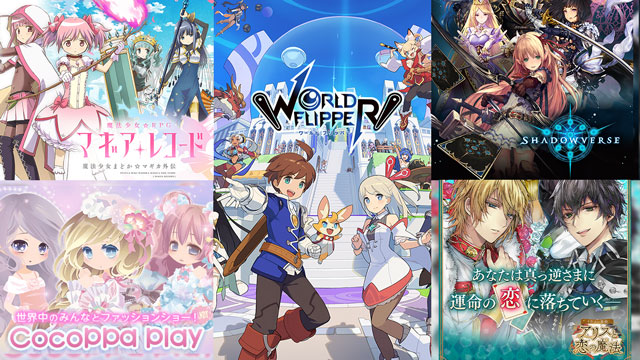
Many attractive graphics are used to decorate smart phone apps and card games.
File size can be reduced and image quality preserved by converting image files to PNG8 or PNG24.
Even the size of PVRTC format files, commonly used for iPhone/iPad, can be easily reduced. The high image quality texture for Unity is also supported.

 Features
Perform color reduction on translucent images with alpha channel and reduce file size by up to 50% without loss of image quality. File size can be significantly reduced by optimizing to 256-color or fewer PNG8, resulting in an image comparable to the original image.
The "Reduce file size (maximum)" feature included in "OPTPiX imésta 7" to further reduce PNG file size was improved to be the "PNG Optimizer."

before reduce
(24bit PNG)15.1KB


after reduce
(8bit PNG)6.96KB

before reduce
(24bit PNG)63KB


after reduce
(8bit PNG)21KB
This feature can reduce PNG24 images, commonly used in smart phone apps, by an average of two-thirds, and can reduce the application file size without affecting image quality.

before reduce
(24bit PNG)223KB


after reduce
(24bit PNG)140KB

before reduce
(24bit PNG)2.21MB


after reduce
(24bit PNG)1.41MB
This new conversion is completely compatible with traditional PVRTC formats but creates higher quality images than traditional PVRTC formats. Image quality after compression is preserved without changing the file size.
The compression feature is used not only for "PVRTC (PowerVR Texture Compression)" but also for "ETC1 (Ericsson Texture Compression)." For ETC1, GPU functionality is used fully to support fast compression.


Excellent compatibility with the Unity game engine. Supports conversion to the Unity RGBA4444 and RGBA5551 formats and exporting to PVR format.
When importing to Unity in this format, the texture is of remarkably higher quality than when directly importing into Unity.

16bit color
(16bit RGBA4444)


 Other Features
With smart phone apps, images must sometimes be limited to a 5 kb or 10 kb file size. By specifying a file size, the file size adjust feature automatically keeps generated images under that limit. Images can be generated that easily balance image quality and file size.
Efficient operations are strongly supported by implementing macro functions that cover image editing functions.
Not only is batch editing and processing of a large number of image resources possible, but batch conversion to multiple application-specific image formats can be performed by running saved macros in series.
File size can be reduced by performing color reduction for all frames in an animation GIF made of multiple images.
This feature can be used not only for GIF materials used in content but also for banner material creation posted to various media.
A feature to delete all tag data incorporated in JPG files was implemented.
Use this feature to reduce the size of a JPG file a little more. This feature improves the merits of the already high-compression JPG format.
A Photoshop plugin is provided for seamless operation with Adobe Photoshop. OPTPiX imésta can be called through a plugin while editing a full-color image with Photoshop to perform color reduction.
Since the image after color reduction is shown in the Photoshop image window, OPTPiX imésta can be used as though it were running in Photoshop, so that operations are efficiently supported.
Export Plugin: Data can be easily passed from Photoshop to imésta.
Color Reduction Plugin: The imésta color reduction feature can be used from Photoshop.
ShowcaseSystem Requirements| OS | Windows * For the OS compatibility policy for OPTPiX products, please refer to this page. |
|---|---|
| language | English |
| Compatible models | Computers running OS above. |
| CPU | Intel Core i5 or more |
| Main Memory | 8GB or more |
| Video Mode | 1024x768 pixels (full color) or better |
| Network | Neccesary to always stay on the Internet connection. |
Purchase| Product Name | OPTPiX imésta 7 for Smart Device |
|---|---|
| Price |
Subscription 6months |
| Delivery | Program: Download from OPTPiX Help Center. License Key: Sent by Email. |
| Payment | Major Credit Cards and PayPal are available as payment options. |
| Returns | Please note that due to the nature of the product, returns after purchased are not accepted. Please request trial license and evaluate the product before purchasing. |